Installing Kali Linux on a MacBook Pro with T2 Chip

This process does not require an external keyboard, mouse, or removable drives.

Reference:

Steps are based on the https://wiki.t2linux.org/distributions/debian/installation/ guide and attached screenshots for smooth process.

Overview of Steps:

  1. Prepare your Mac for installation
  2. Boot Kali Live in a VM and format the partitions
  3. Start the Kali installer
  4. Start the Live system (amd64) again
  5. Add T2 Drivers, kernel, and configure the system
  6. Final macOS steps
  7. Boot into Kali Linux
  8. Customise the appearance to look like macOS

Step 1: Prepare your Mac for installation

  • Download Kali Live ISO from the official Kali Linux Live ISO page or click this link to download.
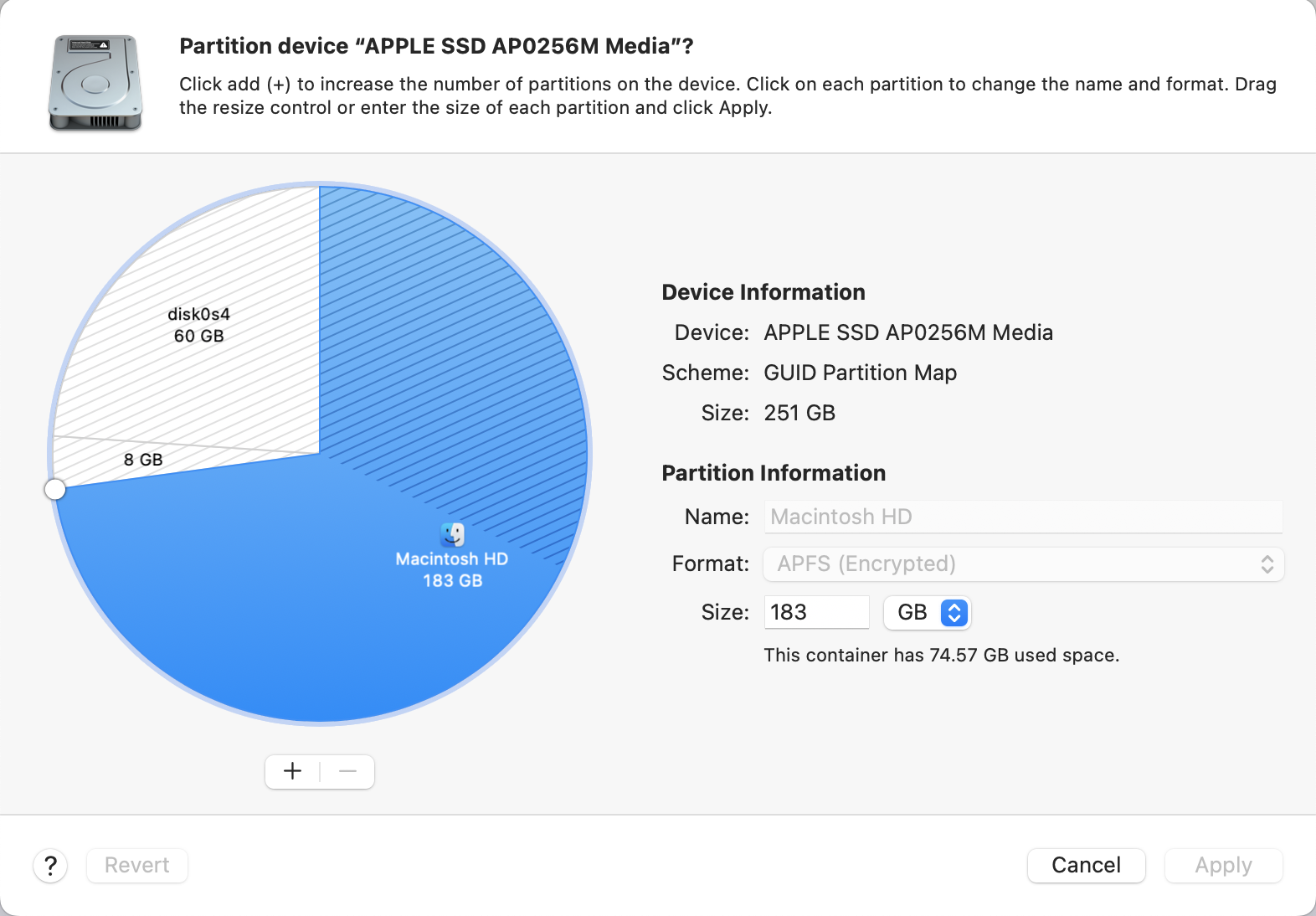
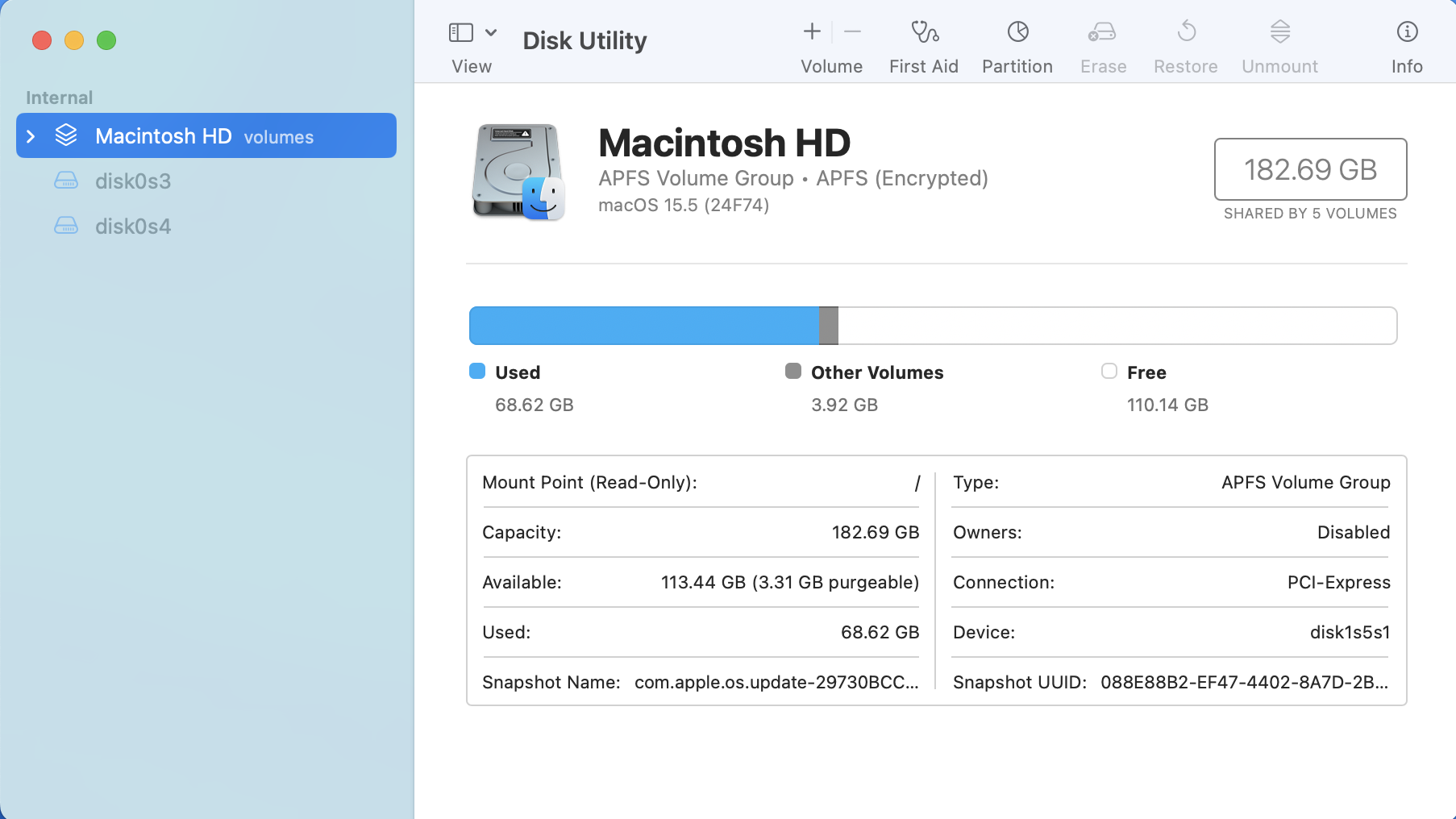
  • Open Disk Utility on macOS
      Click on Partitions
      Click on +
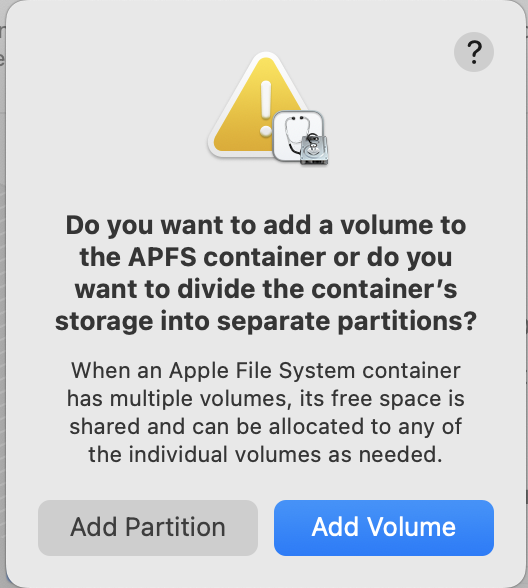
      Click on Add Partition
  • Partition the Disk:
      Root: Minimum 20 GB
      Swap: Minimum 4 GB
      Boot (EFI): Minimum 500 MB (can be a separate or shared partition)
  • Disk Utility
    macOS disk utility application macOS disk utility partition macOS disk utility add partition

    *** Click on Add Partition ***

    *** If separate EFI partition format the partition using FAT system ***

  • Download WiFi and Bluetooth firmware.sh.
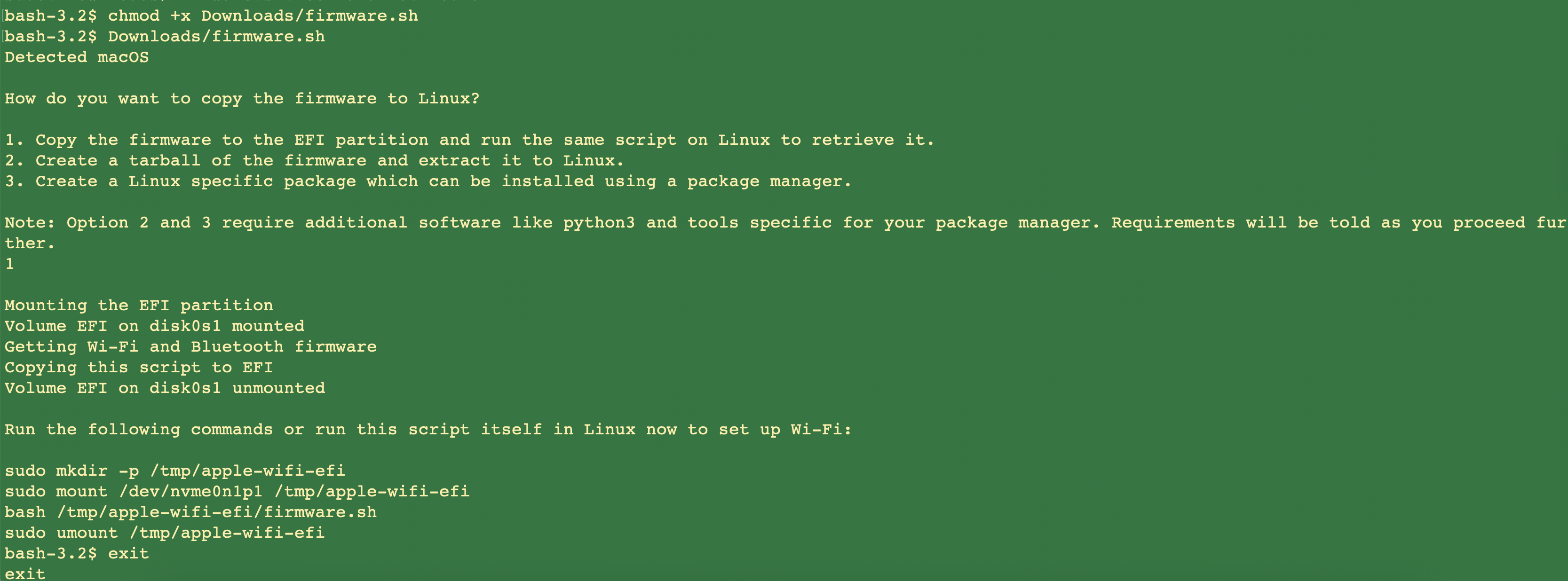
  • In macOS terminal run the following commands bash chmod +x ~/Downloads/firmware.sh ~/Downloads/firmware.sh # Choose option 1 when prompted
  • After running firmware.sh script
    Getting WiFi & Bluetooth firmware from macOS>
  • Download and install QEMU for macOS from QEMU official site.
Step 2: Boot Kali Live in a VM and format the partitions

  • Run the following command in the macOS Terminal (adjust paths accordingly): sudo qemu-system-x86_64 \ -accel hvf \ -m 4G \ -smp 4 \ -boot d \ -drive file=<path-to-Kali-Live-ISO>,media=cdrom \ -drive file=/dev/<disk-name>,if=virtio,format=raw \ -drive file=/usr/local/opt/qemu/share/qemu/edk2-x86_64-code.fd,if=pflash,readonly=on \ -vga std
  • Start the Live system (amd64)
  • Selected Live system (amd64)
  • Open the terminal and format partitions with following commands: # Format root mkfs.ext4 /dev/<disk-name>

    # Format swap mkswap /dev/<disk-name>
    lsblk -f command result in Kali terminal

    *** <disk-name> = vda, vdb or vdc according to their file system ***

  • Verify the partition by running the command lsblk -f
  • Reboot the system

Step 3: Start the Kali installer

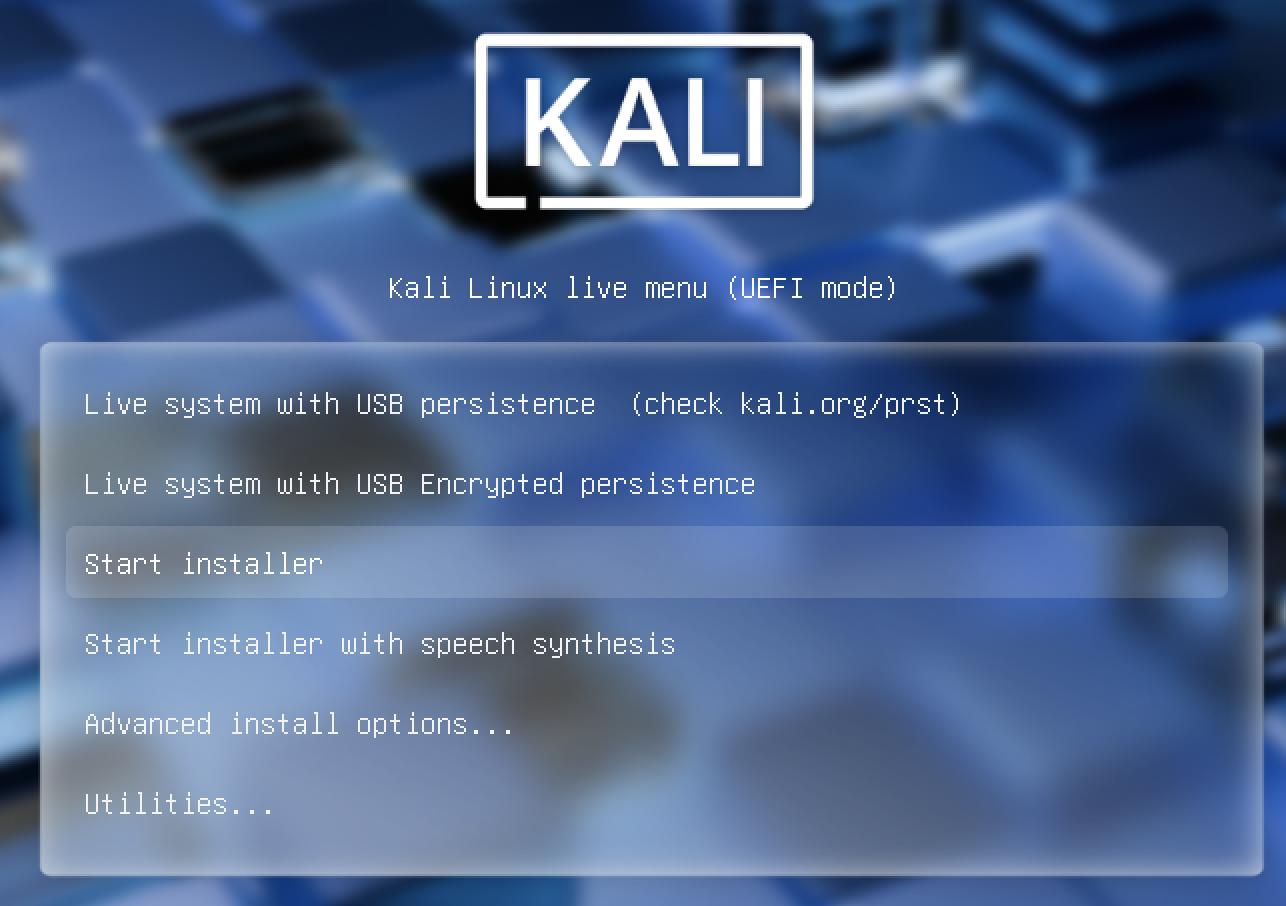
  • Select Start installer from the menu
  • Selected start installer
  • Follow the prompts:
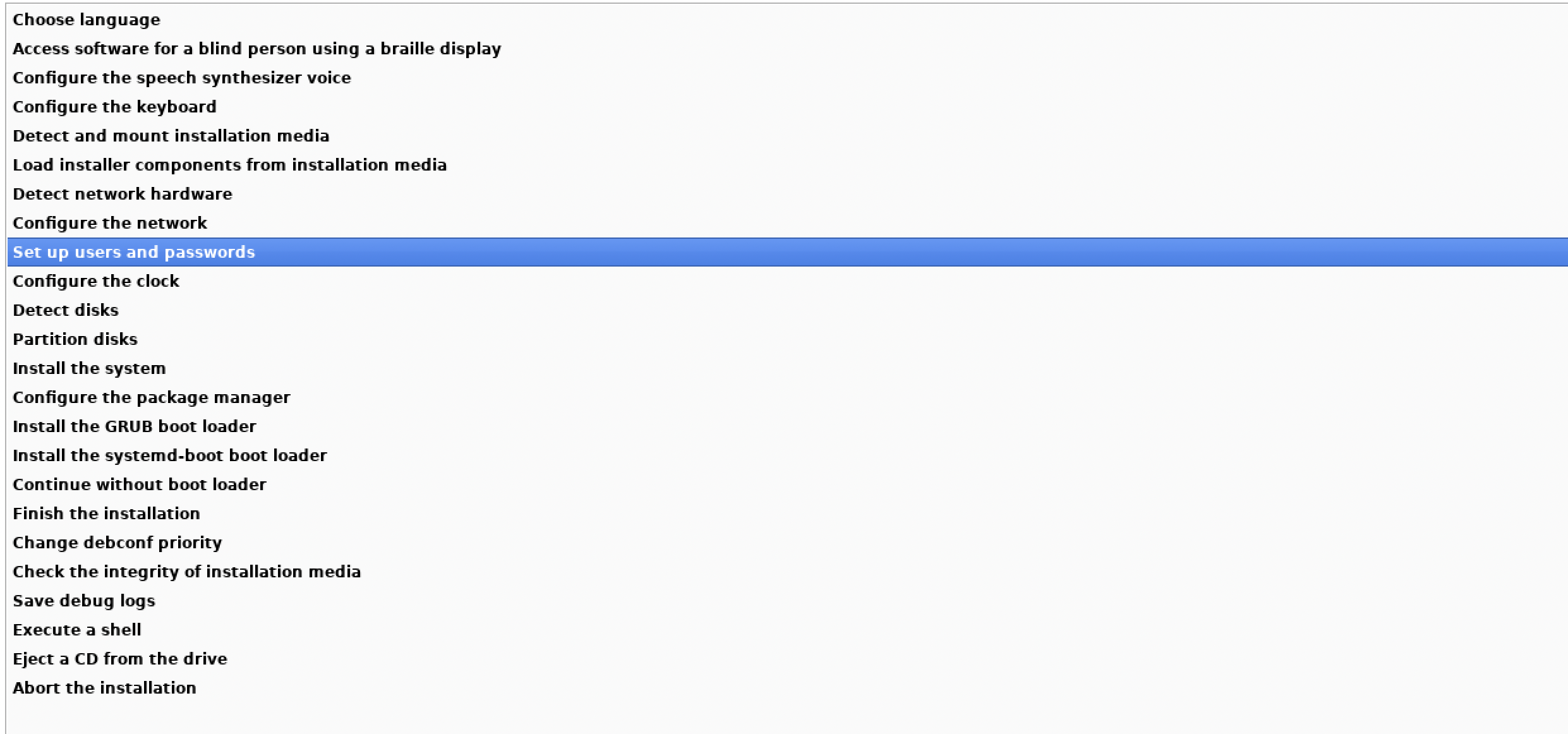
    • Language, and keyboards
    • Configure the network
    • Set up users and passwords
    • menu with setup process
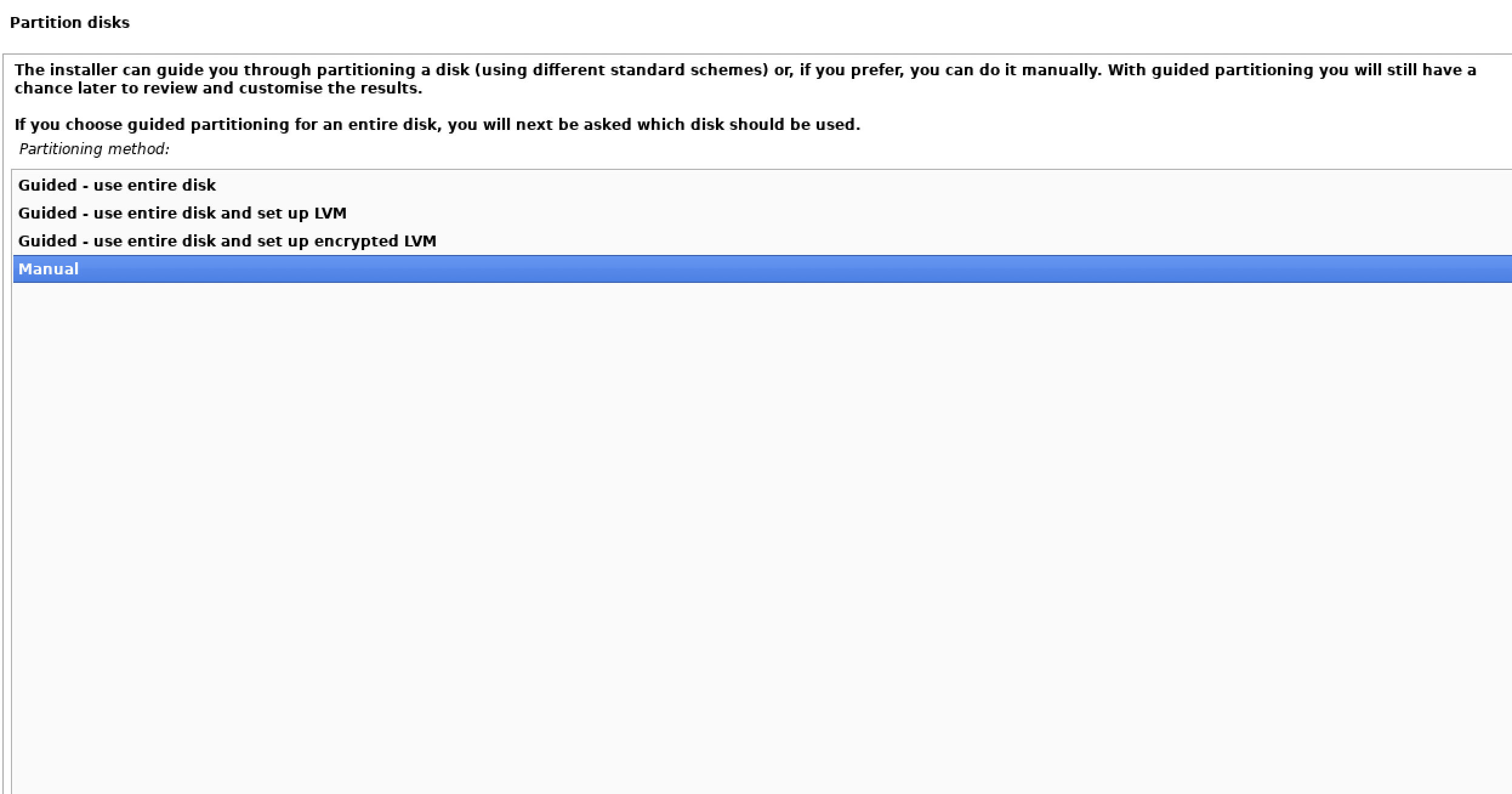
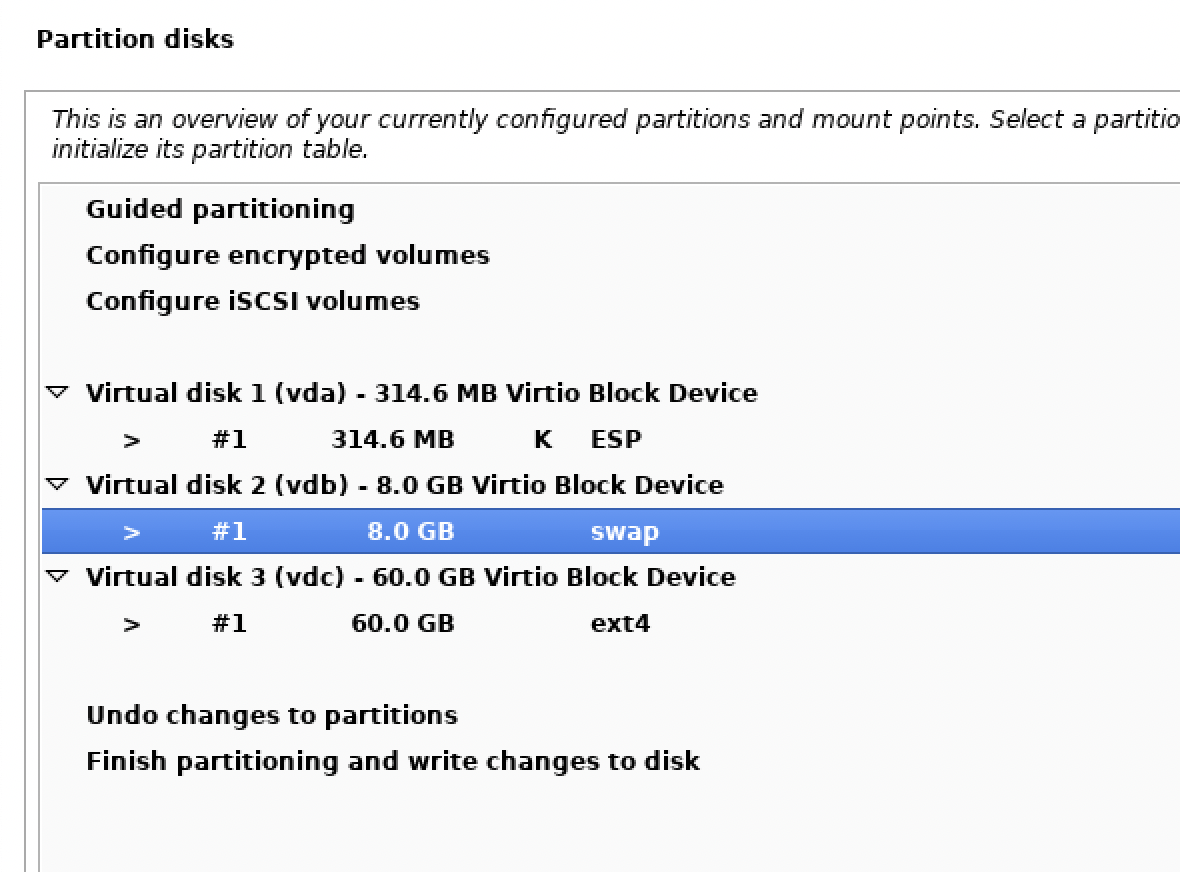
  • Choose manual on partitioning screen:
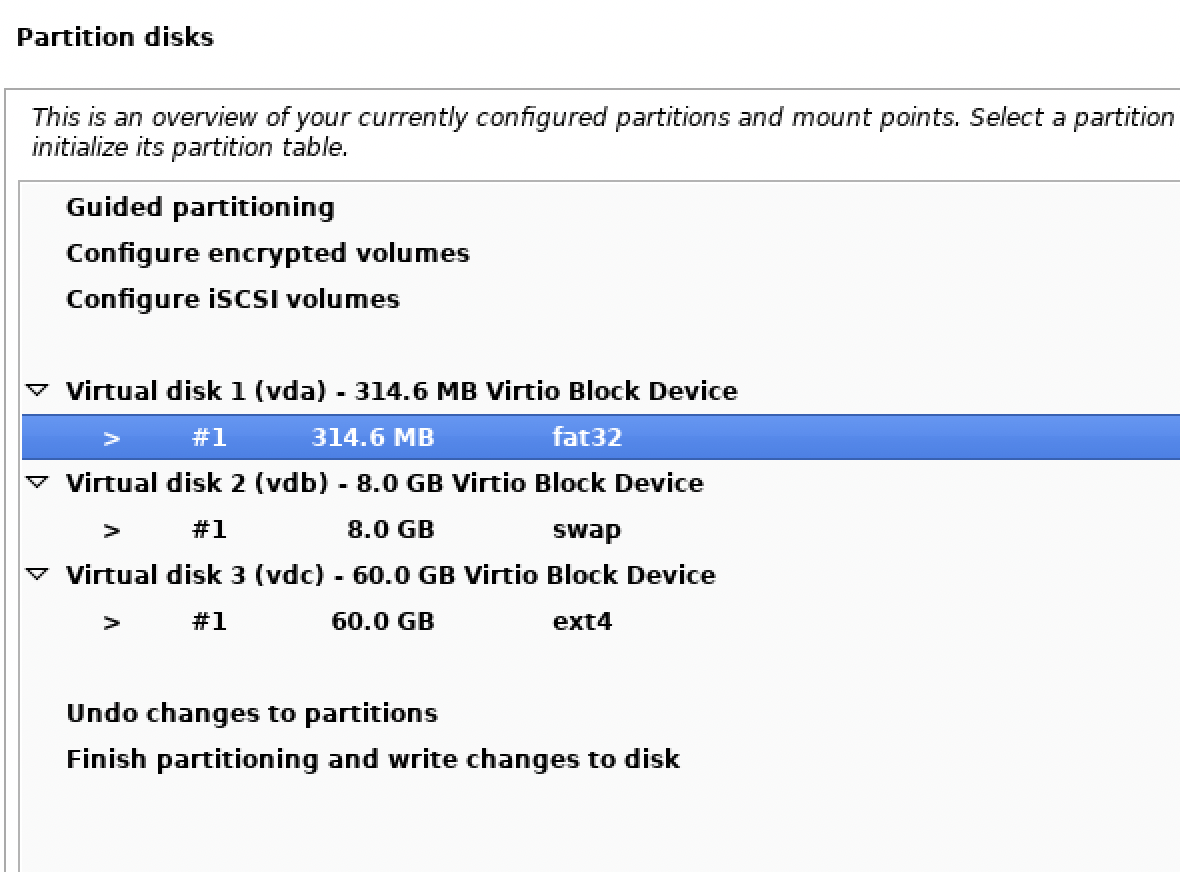
      Selected manual partition Selected for EFI
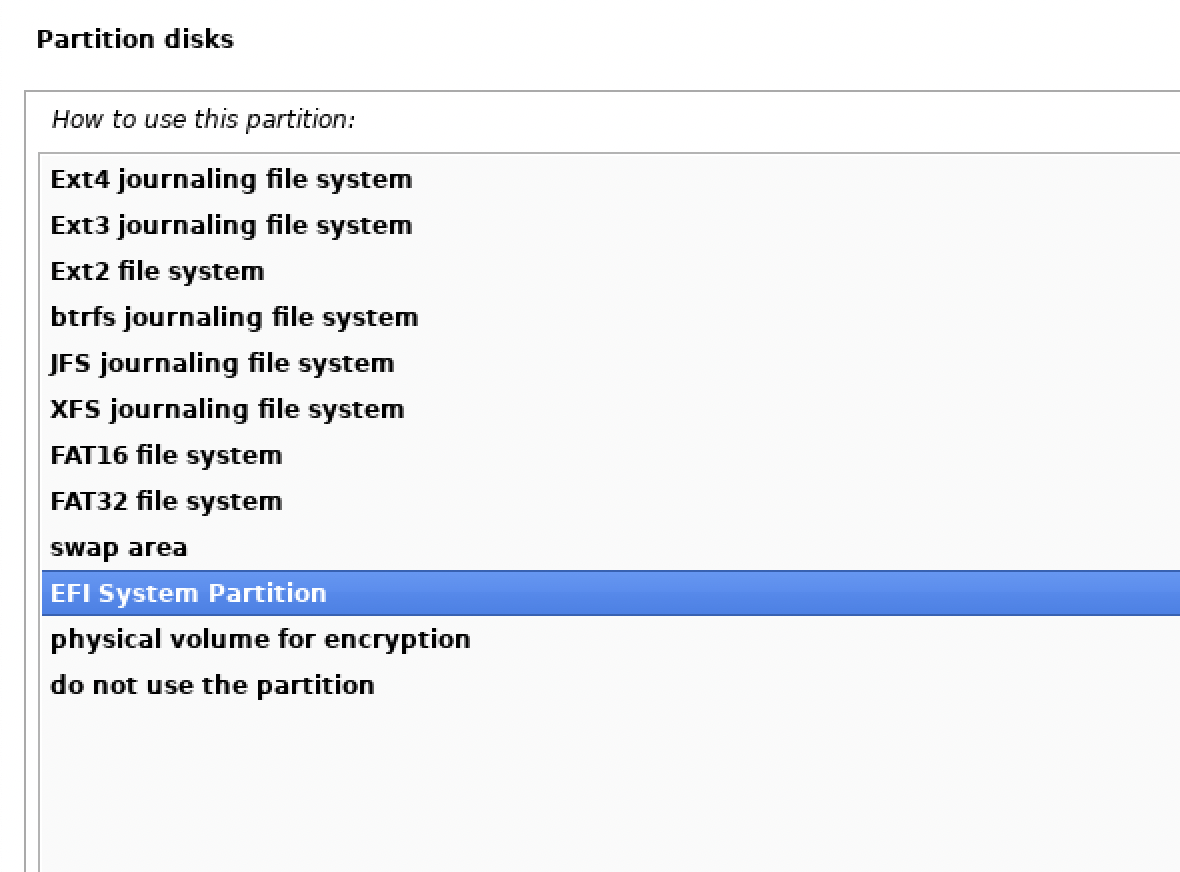
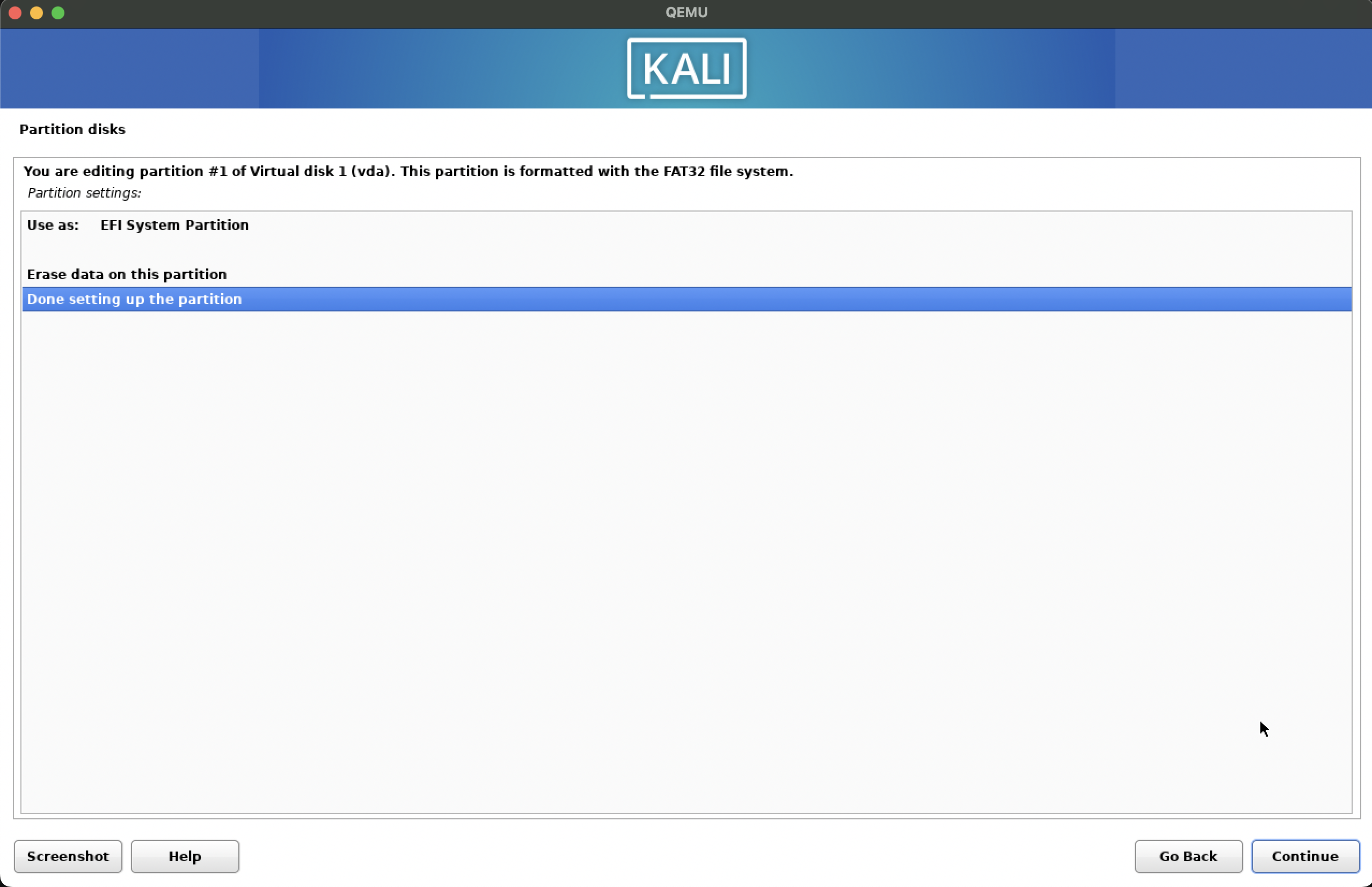
    • EFI: Use as EFI System Partition
    • Selected EFI system partition Selected done setting the partition
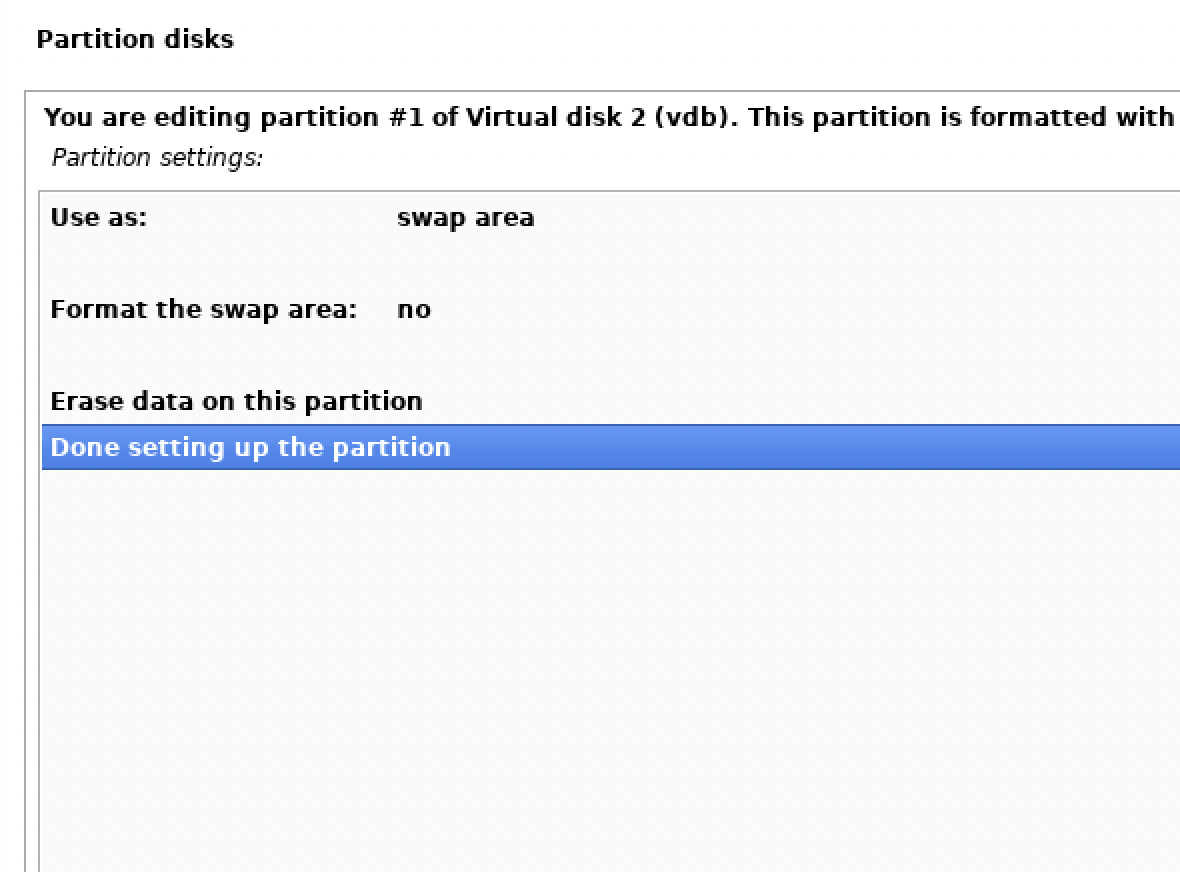
    • Swap: Use as Swap Area
    • Selected for swap Selected done setting the partition
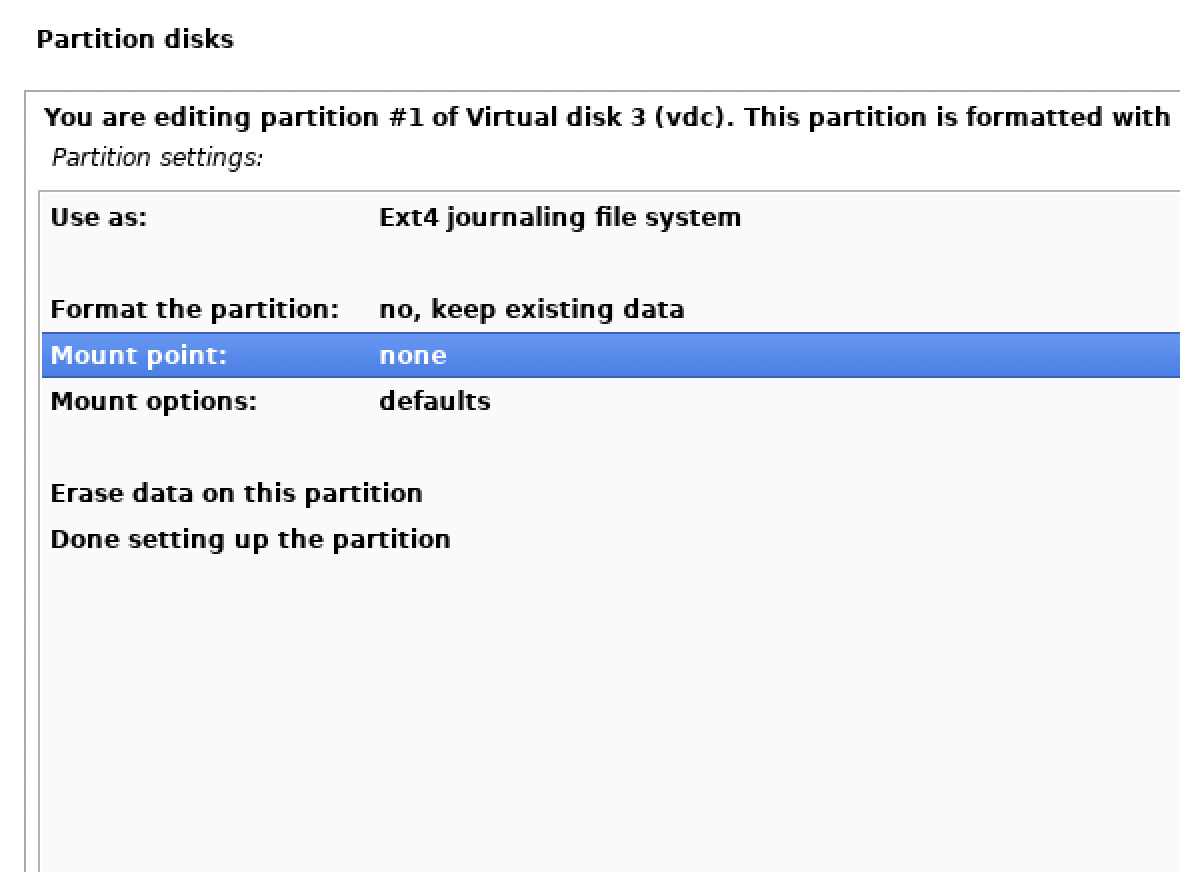
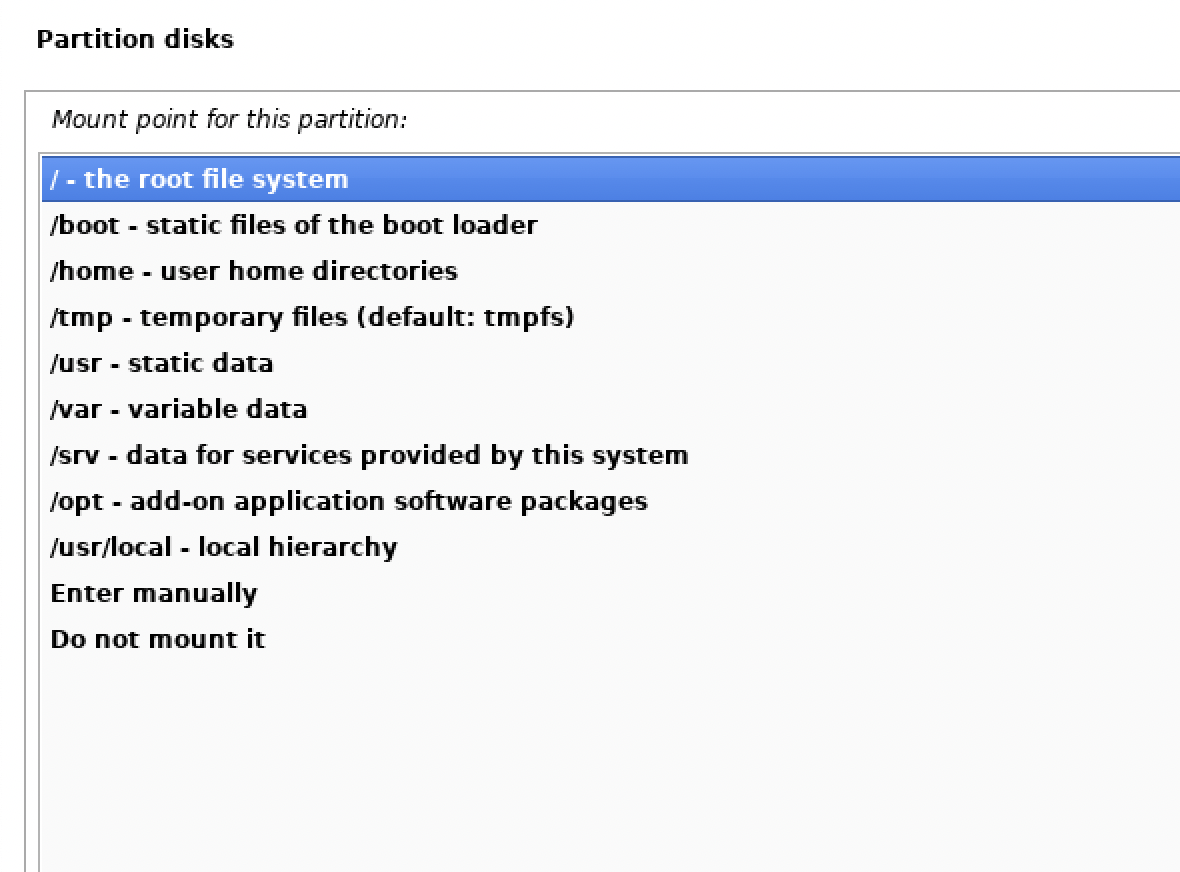
    • Root: Use as ext4 with mount point /
    • Selected the root mount point Selected the root file system
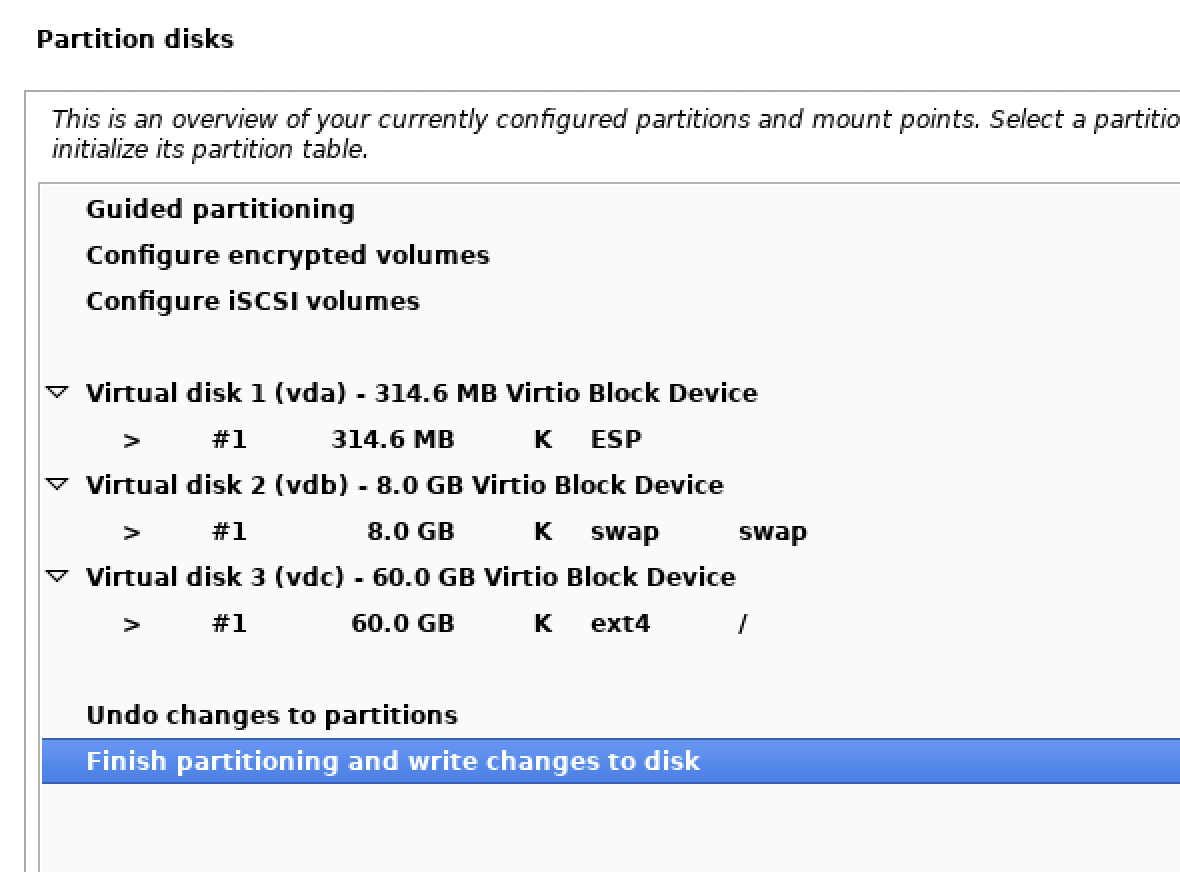
    • Finish partitioning and write changes to disk
    • Selected Finish partitioning and write changes to disk
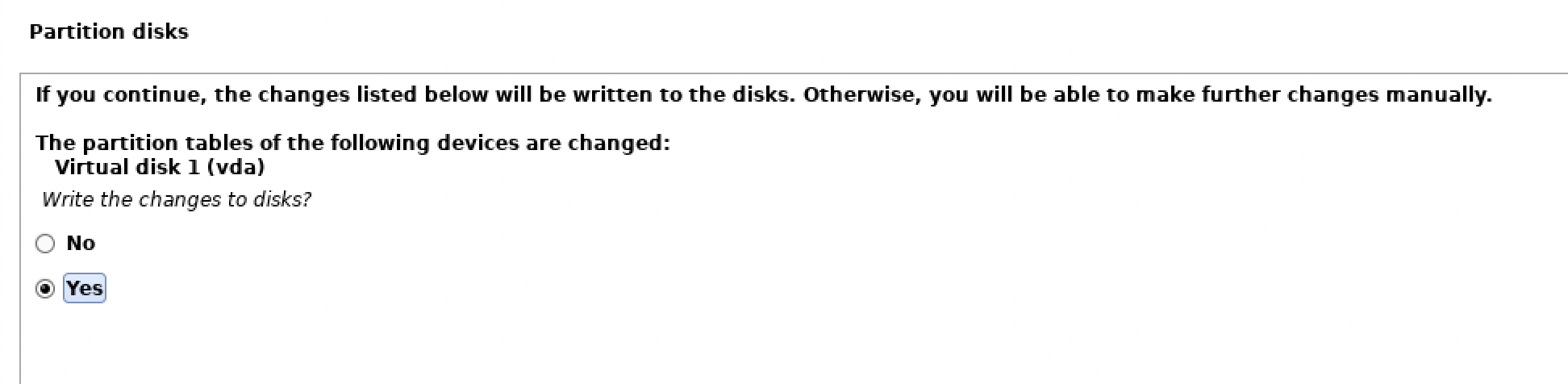
      Selected yes
    • Continue the installation and reboot the system.

Step 4: Start the Live system (amd64) again

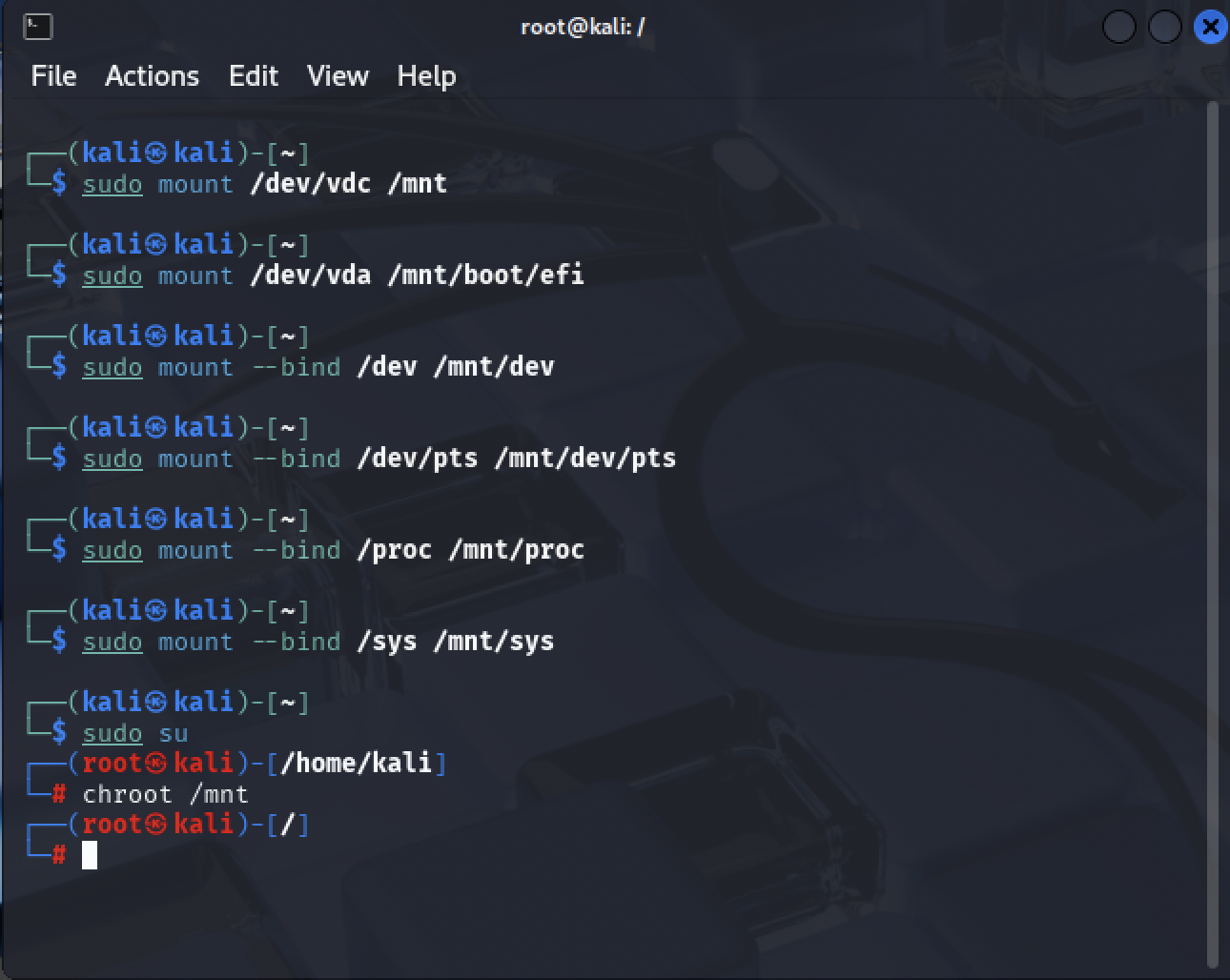
  • Open terminal and run the following commands sudo su mount /dev/<root-partition> /mnt mount /dev/<efi-partition> /mnt/boot/efi mount --bind /dev /mnt/dev mount --bind /dev/pts /mnt/dev/pts mount --bind /proc /mnt/proc mount --bind /sys /mnt/sys
  • commands to mount and bind
  • Copy and rename required *.efi files # making BOOT directory at EFI system mkdir -p /mnt/boot/efi/EFI/BOOT

    # check the *.efi files exists should contain boot.efi, grubx64.efi, and mmx64.efi ls /run/live/medium/EFI/boot

    # copying boot files from live system to EFI system cp -r /run/live/medium/EFI/boot/* /mnt/boot/efi/EFI/BOOT/

    # renaming grubx64.efi to bootx64.efi mv /mnt/boot/efi/EFI/BOOT/grubx64.efi /mnt/boot/efi/EFI/BOOT/bootx64.efi

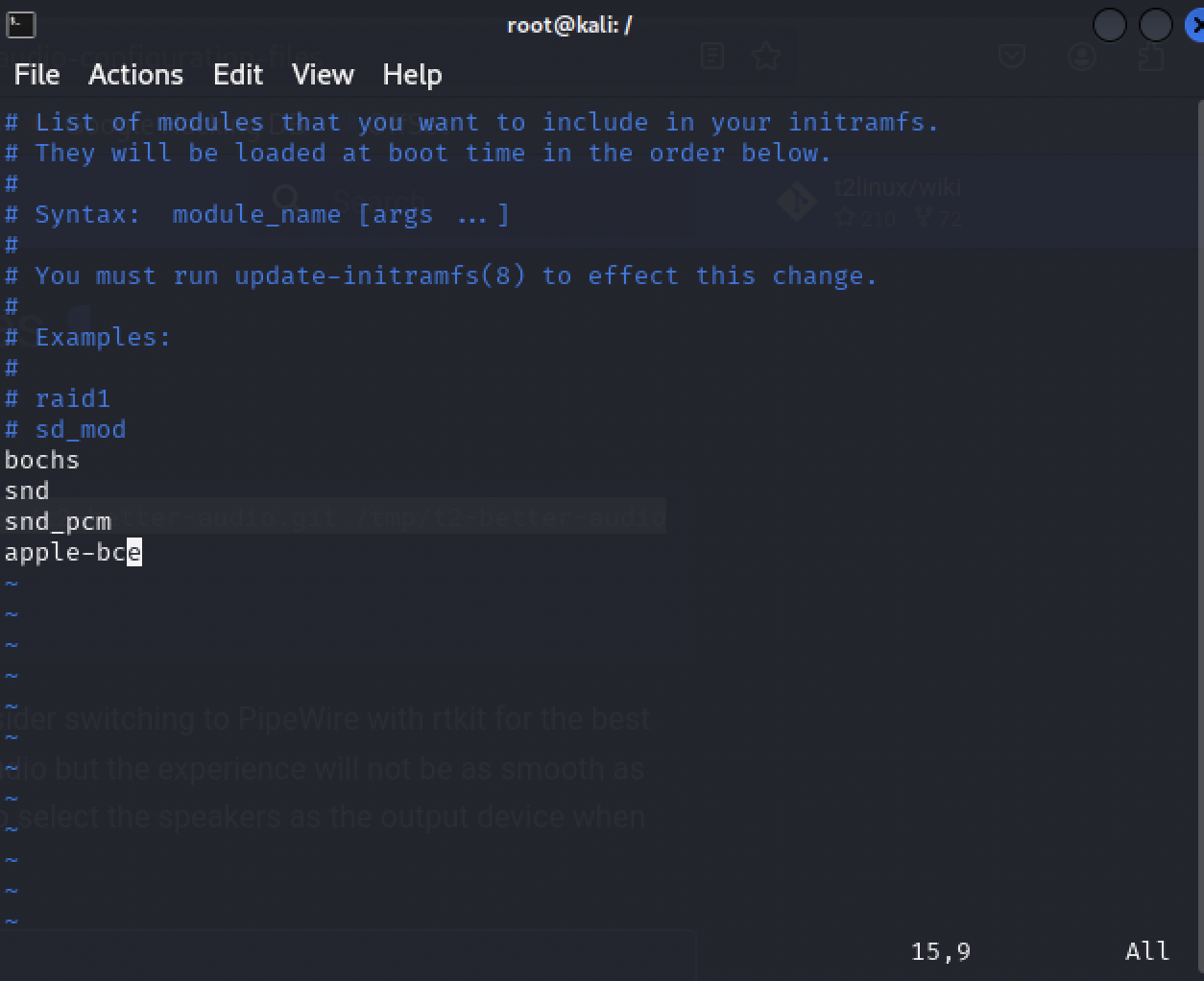
Step 5: Add T2 Drivers, kernel, and configure the system

Continue in the live system

Step 6: Final macOS steps

  • Bless the boot folder sudo bless --folder /Volumes/EFI/EFI/BOOT/ --label "GRUB"
  • Follow these steps to update the NVRAM and it will fix suspend
    • Reboot your MacBook Pro and hold Command + R to enter macOS Recovery
    • From the top menu bar, open Utilities > Startup Security Utility
    • Set Secure Boot to: Full Security
    • Set External Boot to: Allow booting from external or removable media
    • Reboot the system
    • Restart and hold Option (⌥) key
    • Select your EFI system to boot and it will fail

      ** This has worked for me hope it does for everyone **

    • Reboot your MacBook Pro and hold Command + R to enter macOS Recovery
    • Set Secure Boot to: No Security
    • Set External Boot to: Allow booting from external or removable media
    • Reboot the system
    • Restart and hold Option (⌥) key

Step 7: Boot into Kali Linux

  • Install WiFi and Bluetooth firmware chmod +x /boot/efi/firmware.sh # choose option 1 on prompt and yes to save the files # connect to the wifi
  • Suspend workaround which modprobe which rmmod # as for Kali Linux it should be in /usr/share/sbin/ # create the file suspend-fix-t2.service using vim vim /etc/systemd/system/suspend-fix-t2.service
  • Add the following to the file

  • [Unit] Description=Disable and Re-Enable Apple BCE Module (and Wi-Fi) Before=sleep.target StopWhenUnneeded=yes

    [Service] User=root Type=oneshot RemainAfterExit=yes

    #ExecStart=/usr/sbin/modprobe -r brcmfmac_wcc #ExecStart=/usr/sbin/modprobe -r brcmfmac ExecStart=/usr/sbin/rmmod -f apple-bce

    ExecStop=/usr/bin/modprobe apple-bce #ExecStop=/usr/sbin/modprobe brcmfmac #ExecStop=/usr/sbin/modprobe brcmfmac_wcc

    [Install] WantedBy=sleep.target
  • Save and run the following command
  • sudo systemctl enable suspend-fix-t2.service apt update && apt upgrade -y reboot

Step 8: Optional settings

  • Swap the command and control keys setxkbmap -option ctrl:swap_lwin_lctl,ctrl:swap_rwin_rctl
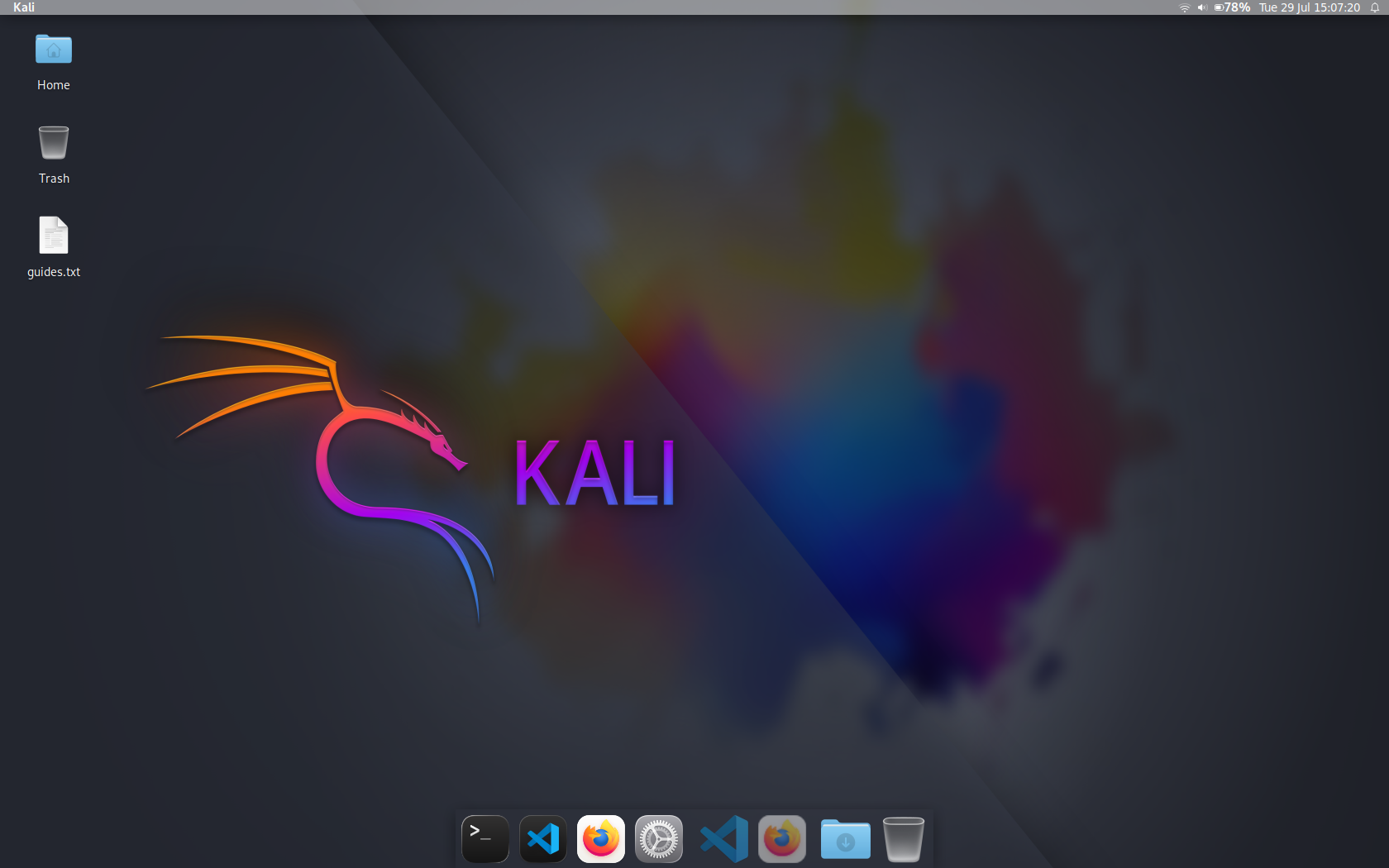
  • Change the Appearance to macOS
    • Go to Panel Profiles
      • Select Cupertino
      • Click Apply Configuration
MacOS like appearance